Monday, December 29, 2008

Find Sound Effects with “Find Sounds” Search Engine


Okay, are you a teacher looking for sound effects to use in multimedia projects for your students but are not sure where to look? The “Find Sounds” search engine will make your life so much easier. This site offers many different types of audio clips for you to download. The only problem is that the sound effect that you find may not be copyright-free.
Here is a disclaimer from the Find Sounds site:

“When you perform a search using FindSounds.com or the WebPalette feature of FindSounds Palette, you obtain links to audio files hosted by Web sites throughout the world. The sounds in these audio files may be copyrighted and their use governed by national and international copyright laws. We do not offer advice on the fair use of these files.”

Therefore, teachers and students still need to do some basic research to find out if the sound can be used under fair use laws, but at least they have a starting point now. Even so, check out Find Sounds and let me know what you think.

Sunday, December 28, 2008

Kitzu offers multimedia options for teachers and students


Kitzu is my newest find! I mentioned it briefly in an earlier post, but I finally had a chance to look at it this weekend. Kitzu offers free, copyright-friendly, and educational media packages for teachers and students to use in multimedia projects. Most packages include about six pieces of media around an educational theme from the 21st century that can include images, documents, audio clips, video clips, and illustrations. As a teacher, download one of these kits to use with your whole class. You will be amazed that each student uses the media differently to create a unique project. For teachers who do not know where to start, Kitzu is the perfect first step for integrating with PowerPoint, Photo Story, Movie Maker, or Adobe Premier Elements.

MD, VA, DC Day of Discovery

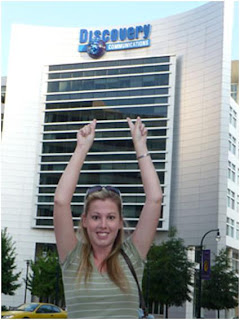
On Wednesday, August 13, 2008 I traveled to Silver Spring, MD for “The Day of Discovery” at the Discovery Communications Headquarters. In addition to breakfast, lunch, and wonderful door prizes, we were treated to two keynote sessions and three break out sessions that taught us how to incorporate “Discovery Streaming,” a paid subscription to a site that is packed with educational multimedia for teachers to use.

Scott Kinney presented on “The Media Evolution”. He supported the idea that media should be incorportated into the classroom as an instructional aid since 8-18 year old children spend 6 1/2 hours a day with media of some kind. Many teachers do not realize all of the skills that are needed to create media for school projects: researching, locate and gather resources, prewriting, writing, editing, storyboarding, and reading fluency skills.

Hall Davidson, Director of the Discovery Educator Network, presented on “Digital Media with Students in the Classroom.” He discussed scaffolding the use of digital media in student projects until students are comfortable with the skills. For example,
  1. Begin with creating PowerPoint presentations and embed videos from Discovery Streaming.
  2. Create slideshows from your digital images in Photo Story.
  3. Create videos and movies with narration in Movie Maker.
  4. Finally, create movies in Adobe Premier Elements and introduce chromakey skills to the kids.

In addition, Mr. Davidson told us about Kitzu, a website of resources for digital media for student projects and Jakesonline, a site of wonderful tutorials to get you started.

Matt Monjan presented “50 Ways to Integrate DE Streaming”. While most of this was a review since I saw matt speak a few times before, I still learned a few new tricks. For example, I discovered that you can now insert embeddable code, or widgets, into DS’s writing prompts and you can add more than one image. Also, if you search “AFI” in Discovery Streaming, you will find several film making video resources to use with your students.


Hall Davidson also presented on “Teaching with Cell Phones”. I spent most of the time on my phone so I forgot to write most of it down. However, I learned that you can podcast directly from your cellphone using Gcast.com. You can also upload video directly into YouTube from your cell phone. And did you know that you can take a poll from your phone using text massaging and see the results live on polleverywhere.com? I tried this out - SO COOL. Or try this one - if you send a text message that includes a fast food restaurant and a menu item to 34381 you will receive a message with all of the nutritional information about that food item. For example, text “McDonald’s Big Mac” to 34381, it will tell you how many grams of fat you are about to enjoy.
Dennis Swain presented “Embedding Multimedia: PowerPoint Presentations that Pop!” While I knew that we could embed videos and hyperlink to videos, I didn’t realize you could embed videos and still have all of the controls of Windows Media Player available (play, rewind, fast forward, etc). To do this, open PowerPoint and go to a slide.

  1. Click the “View” button on the top toolbar.
  2. Click “Toobars” and “Control Tool Box”.
  3. Click on the “hammer” button.
  4. Scroll to “Windows Media Player” and select it.
  5. Crosshairs will appear. Draw a box on the slide where you want the video to appear.
  6. Right-click the box. Choose “properties”.
  7. Click on the three dots on the box. (…)
  8. Browse to where your downloaded movie is on your computer. Select it.
  9. Under “playback options”, uncheck “auto start” and check “stretch to fit.”
  10. Click OK.
  11. Now you will see the embedded video with the Media Player controls. While the video is playing, you can right-click the video and choose “Zoom” and “Full screen”. Ta-Dah!


Thank you, Discovery Education!

RELATED POST:

Photostory Quick Tip: Saving as a Project vs. Saving as Final Movie

Talking Pets Fun For ESL Learners


Talking Pets is a site I came across today that allows you to select a pet (cat or dog) and make it talk by selecting a pre-recorded message or a message that you type on your own. Then you can email your talking pets to all of your friends. This site could provide incentive for beginning ESL learners to want to write in English so they can hear it spoken back to them. It can’t get any more fun than a talking pet reading your writing back to you!

Visit Mars with Google Mars


While Google Mars is not as exciting as Google Earth, it is still worth a visit. You can tour the planet by elevation, infrared, or visible surface. Zoom in or out of the planet and search by plains, ridges, craters, mountains, canyons, dunes, spacecraft landings, etc. Once you search for a specific place, often Google Mars will link to an article that you can read for more information.


On the “About Google Mars” page, Google provides this introduction, “This map of Mars, published by Percival Lowell in 1895, was the result of many years spent carefully studying the Red Planet through his telescope. Now you can do the same through your web browser. In collaboration with NASA researchers at Arizona State University, we’ve created some of the most detailed scientific maps of Mars ever made.”


I enjoyed it! Imagine being able to explore Mars from the comfort of your classroom. Take a virtual field trip today!

More interactive art websites

Again, I found a few more art websites by navigating my network in my delicious account. I think you will find them as fun as I did.


This is a collaborative art project that allows the user to submit an art piece, no matter how small, to be a part of the “biggest collaborative art project in the world.”


Scribbler is an interactive site where you draw a simple scribble or doodle. When you are finished, you click “start scribbler” and the site makes an interpretive scribble of your carefully created doodle. Interesting! Experiment with changing the colors as scribbler makes your piece for added beauty.


BRUSHster: National Gallery of Art

BRUSHster is an online painting canvas with different brush sizes and shapes as well as a variety of colors. The only thing I didn’t like was that I could only click “undo” and step back one time.


Collage Machine: National Gallery of Art
The collage machine makes collages (surprise!) with different shaped pieces of papers in a select number of colors. However, by changing the transparency of the pieces, you can make more of the limited choices you have.

Mondrian Machine
The Mondrian Machine is inspired by the art of Piet Mondrian, which consists of perpendicular black lines that subdivide his canvas colored with primary colors. This site is probably the most primitive of the bunch listed here, but could still serve a purpose in art class if you are studying this topic.


Surreal Painter
Create surreal art with the help of pre-made backgrounds and objects! After you create your masterpiece, you can share it with your friends. It will look like you spent hours in a high-tech art program when really it only took you a few minutes using this site. Be cool among your artistic friends!


Monday, December 15, 2008

Visit Planet Science! So Cool!

Planet Science is a site from the UK, which sometimes causes educators in the USA to pass it by. I don’t know why - many of the interactive, educational sites worth visiting come from the UK. Ok, so they spell things a little differently and use the metric system (like everywhere else but here)! Their sites still rock!

Planet Science has interactive games for K-12 students. I played a few of them and have enjoyed ALL of them so far. The first one I tried was the Smoothie maker. You can choose the ingredients to add to a blender to make your own smoothie. When you’re done, start the blender! The site will tell you how nutritious your smoothie is complete with how many grams of sugar and how many carbs you just drank in your smoothie. The best part is the “Smoothie” song the site plays as it mixes your drink. So much fun!

Next I tried Planet 10: World Builder (because Earth can’t last forever). The student creates a new planet by choosing many, many different things such as: size, orbit, atmosphere, shape, moons, terrain, organisms, distance from sun, etc. After you make all of your choices, you launch your planet into the atmosphere and see if it “survives” in space. After a lot of careful planning, I managed to burn up all the living organisms, evaporated my atmosphere, and got hit by a comet. Disaster. But so much fun!

Planet 10: Solar System is also a nice resource. Students can zoom into different planets to learn more about them. Fun! It has better graphics than Google Sky, but I’m not sure if the information is as detailed as Google Sky.

The site also has a list of science games on the Internet that are worth looking into as well as a parent page to get them involved. I love this site! Thumbs up from me!