Showing posts with label audio. Show all posts

Monday, February 9, 2009

Quick Tip: Recording Sounds in Pixie Software

Did you know you can connect a microphone headset to your computer and record your voice in Pixie software? Many teachers and students overlook this powerful feature. Recording sound on your Pixie picture is a wonderful way to narrate a digital story, add sound effects for a descriptive paragraph, or practice fluency and expression. To record a sound, connect your microphone, click the red record button, speak into the microphone and click the "stop" button when you are finished. (See picture below) Now you can press "Play" button to hear your sound. However, if you click "Share" and view your pictures as a slideshow within Pixie, you can view your pictures in slideshow format and your recorded sound will play automatically. ** Please note: If you export your Pixie pictures as a .jpeg or other file format, you will lose the ability to play the sound. The sound is only attached to "Pixie" files: .pxi files.

RELATED POSTS:

Pixie Ideas for the Classroom

Opening a Folder of Pictures in Pixie

Exporting a Painting as a .jpeg in Pixie

Sunday, February 8, 2009

Quick Tip: Muting a Video Segment in Movie Maker

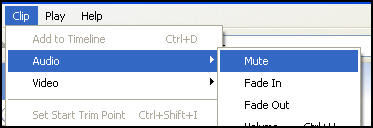
Why would you want to mute the audio to a video segment in Movie Maker? As a classroom teacher, this makes it easy for students to take a video segment from Discovery Streaming and record their voice over it with the facts that they have researched in class. To mute the audio of a segment, you need to be in timeline view. Then select the video, click "Clip" --> "Audio" --> "Mute". If you have more than one video segment, you will need to repeat this process multiple times. (See picture below)


Wednesday, December 31, 2008

Audio Books Online

Many special education teachers and reading teachers ask me about sites that have stories online where students can HEAR the book being read to them. While there are several sites that do this, very few of them have the words or captions that go along with the passage. These sites make good learning stations for students in your classroom. Here are some of my favorites:

Storyline Online is a website sponsored by the Screen Actors Guild. There are several celebrities who offer their talents to read a best-loved children’s book on video. Stream the video to watch the actor read the story complete with story book pictures and captions that you can turn on or off. A few of my favorites on this site are: Stellaluna, Knots on a Counting Rope, and The Night I Followed the Dog. This is a GREAT SITE! This site is for elementary school students.

Loudlit.org is a site that boasts “literature for your eyes and ears”, and they’re right. The website features novels, poetry, historical documents, children’s books, and short stories that you can read and follow along as someone reads it to you. You can stream the audio or download it. I especially like the poetry section since it helps students hear how poetry should be read with pauses and breaks. Famous pieces that are featured (and here are just a FEW): The Highwayman, The Raven, The Adventures of Huckleberry Finn, and The Tale of Two Cities. This site primarily targets secondary students, but there are some selections for primary aged kids.

ByGosh.com is a good source for digital text online, although it doesn’t read the text to you. However, many teachers have the use of text-to-speech software that allows them to copy and paste text into the program to read it to the student. This site has items for elementary and secondary students.

At Childtopia, there are seven stories that you can hear read out loud to you. This is definitely geared for elementary school students.
My favorite of these sites used to be Tumble Books - not featured here since they have recently turned their site into a paid site. Previously their content had been completely free. If your school is willing to pay for a subscription, this site would be worth your time and money.

RELATED POSTS:
Read, Write, Think: Comic Generator
Sight Words with Samson
Madlibs online for kids

Monday, December 29, 2008

Find Sound Effects with “Find Sounds” Search Engine


Okay, are you a teacher looking for sound effects to use in multimedia projects for your students but are not sure where to look? The “Find Sounds” search engine will make your life so much easier. This site offers many different types of audio clips for you to download. The only problem is that the sound effect that you find may not be copyright-free.
Here is a disclaimer from the Find Sounds site:

“When you perform a search using FindSounds.com or the WebPalette feature of FindSounds Palette, you obtain links to audio files hosted by Web sites throughout the world. The sounds in these audio files may be copyrighted and their use governed by national and international copyright laws. We do not offer advice on the fair use of these files.”

Therefore, teachers and students still need to do some basic research to find out if the sound can be used under fair use laws, but at least they have a starting point now. Even so, check out Find Sounds and let me know what you think.