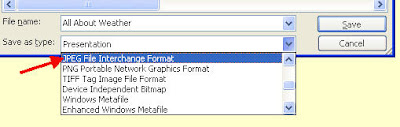
Did you know you can save your PowerPoint slides as .jpegs instead of a PowerPoint presentation? Why would you want to do this? Well, you would be able to import your slides into Photo Story and Movie Maker since both programs accept images. Keep in mind when you turn your PowerPoint slide into a .jpeg, you lose all functionality of the slide (No effects, transitions, or animations are saved). Essentially, you are taking a picture of your PowerPoint slide. To do this, create your PowerPoint slide. Go to "File" --"Save As". At the bottom of the window where it says "Save as Type", pull down the window and choose "JPEG File Interchange Format". Now you can import the .jpeg into any program that supports picture files.
Kitzu is my newest find! I mentioned it briefly in an earlier post, but I finally had a chance to look at it this weekend. Kitzu offers free, copyright-friendly, and educational media packages for teachers and students to use in multimedia projects. Most packages include about six pieces of media around an educational theme from the 21st century that can include images, documents, audio clips, video clips, and illustrations. As a teacher, download one of these kits to use with your whole class. You will be amazed that each student uses the media differently to create a unique project. For teachers who do not know where to start, Kitzu is the perfect first step for integrating with PowerPoint, Photo Story, Movie Maker, or Adobe Premier Elements.
After reading a blog by the “Cool Cat Teacher” (a.k.a. Vicki Davis), I found a great video posted on Youtube.com called “How NOT to use PowerPoint”. It featured comedian Don McMillian giving his routine on the pitfalls of PowerPoint presentations, which we can all relate to. Although it’s a comedy routine (and a very funny one), he actually has some very good tips on how to make your PowerPoints better so that people will be more interested in what you have to say during your presentation. He touches on all of these PowerPoint tips:
1. Don’t put too many words on your slides. 2. Don’t put too many bullets on your slides. 3. Watch your visual design and color choices. 4. Use spell check. 5. Keep the number of slides down to a minimum. 6. Be selective of graphs, charts, and other data visuals. 7. Limit the use of animations. 8. Be careful with font selection.
Mr. McMillian elaborates on all of these points in the video. Even though it’s on Youtube, it’s worth checking out on your own time. I believe all teachers and technology specialists will get a laugh out of it and find the information useful.


 Posts
Posts


